
Most healthcare practice owners don’t spend much time thinking about replacing computers until somebody complains that one is slow or a piece of equipment stops working. I understand why. If the computers are turning on every morning and employees can do their jobs, replacing them probably doesn’t feel like a priority.
But there’s a difference between a computer that still works and one that’s working well enough for the job it’s supposed to do.
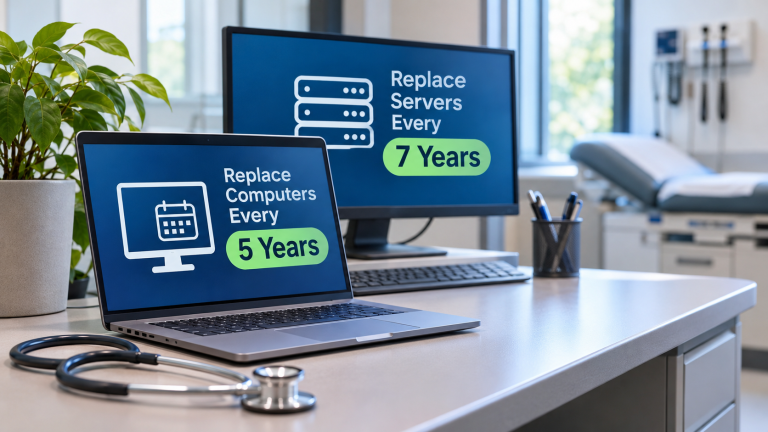
At Strive, we generally recommend replacing desktop and laptop computers every five years and physical servers every seven years. Those recommendations aren’t based on the idea that equipment suddenly stops working on its fifth or seventh birthday. They’re based on the reliability problems, support costs, and business disruption that tend to increase as equipment gets older.
Of course, there are exceptions. A computer that’s failing repeatedly may need to be replaced earlier. Specialized clinical equipment may have different requirements. But for ordinary business computers, we find that five years is a sensible replacement target.
The goal isn’t to get every possible year of life out of a computer. It’s to get good value from the equipment while avoiding the point where keeping it running becomes more expensive and disruptive than replacing it.
1. Why We Recommend Replacing Computers Every Five Years
Computers are more reliable than they used to be. Modern desktops and laptops can run for years without experiencing a major hardware failure, particularly when they’re properly maintained.
But that doesn’t mean they remain equally reliable forever.
When we look at a group of computers that are four, five, and six years old, we generally see a pattern. The older computers tend to experience more problems. Some develop hardware issues, some become slower as software requirements increase, and others start generating recurring support requests.
A six-year-old computer might still be working. But if employees are regularly restarting it, waiting for applications to respond, or calling IT to troubleshoot problems, keeping it in service may no longer be a good financial decision.
That’s why we generally recommend replacing business computers at five years rather than waiting until they fail.
A Computer Doesn’t Have to Break to Become Expensive
One of the most overlooked costs of aging computers is the time they quietly consume.
Imagine a provider who sees 20 patients each day. Suppose slow computers and delayed application responses add just 30 seconds to each appointment. That’s 10 minutes per day. At one minute per appointment, it’s 20 minutes.
Those are illustrative numbers, not measured results from a particular practice. But they show why computer performance matters even when nobody is calling the help desk.
Maybe those extra minutes would help the practice stay on schedule. Maybe the provider could spend a little more time with a patient. Or maybe the provider simply gets home on time instead of finishing the day 20 minutes late.
A computer that works but consistently slows someone down is still costing the practice something.
Maintenance Comes Before Replacement
Not every slow computer needs to be replaced.
Sometimes performance problems can be corrected through software updates, configuration changes, or routine maintenance. At Strive, we perform weekly automated PC tune-ups and maintenance to help keep computers performing well.
If a three-year-old computer is running slowly, we want to understand why and address the problem. But if a six-year-old computer is experiencing recurring issues, we’re much more likely to recommend replacing it.
There’s a point where continuing to troubleshoot an aging computer becomes more expensive than simply putting a new one in service.
And that’s the point we want to avoid reaching.
2. How Long Should Servers and Other IT Equipment Last?
Servers have a different lifecycle from desktop and laptop computers.
At Strive, we generally recommend replacing physical servers after seven years, assuming they’re still appropriate for the practice’s needs and haven’t developed problems that justify earlier replacement.
A server may still be running perfectly well after seven years. But that doesn’t mean keeping it indefinitely is a good idea.
The consequences of a server failure can be substantially greater than those of a workstation failure. Depending on how the practice operates, a server problem could affect multiple employees, shared files, applications, or systems that support patient care.
We would much rather plan a server replacement while the existing equipment is functioning than have to make that decision during an outage.
Not Every Device Follows the Same Schedule
Different types of equipment have different replacement considerations.
| Equipment | Strive’s general recommendation | What affects the decision |
|---|---|---|
| Desktop computers | 5 years | Reliability, performance, employee productivity |
| Laptops | 5 years | Reliability, physical wear, performance |
| Physical servers | 7 years | Hardware condition, manufacturer support, workload, recovery requirements |
| Firewalls and network equipment | Based on support status and business needs | Security updates, reliability, performance |
| Printers and scanners | Based on condition and workload | Repair costs, parts availability, compatibility |
| Specialized clinical equipment | Based on vendor and application requirements | Clinical needs, support agreements, integration with other systems |
These are planning recommendations, not guarantees that equipment will last until a particular date.
For healthcare practices, specialized clinical equipment deserves particular attention. Imaging systems, diagnostic equipment, and other clinical devices may depend on specific computers, operating systems, or software versions.
Before replacing a computer connected to clinical equipment, your IT provider should coordinate with the relevant vendor to make sure the replacement will work properly.
The goal is to improve reliability without accidentally disrupting a critical clinical workflow.
3. Should You Repair an Old Computer or Replace It?
When a computer develops a hardware problem, one of the first questions I’d ask is whether it’s still under warranty—and what kind of warranty it has.
Not all warranties are equally useful.
If you have a next-business-day on-site warranty, the manufacturer can typically arrange for a technician to come to your office with the necessary replacement part. There may still be downtime while the repair is arranged and completed, but the process is usually much less disruptive than sending the computer away.
Compare that with a depot warranty, where you have to ship the computer to a repair facility and wait for it to be returned. Depending on the repair and shipping process, an employee could be without that computer for a week or two.
The repair itself might be covered, but what about the cost of having an employee unable to use their normal workstation?
That’s why, when we purchase computers with warranties for our clients, we favor next-business-day on-site service rather than depot repair.
The exact response time still depends on the manufacturer’s warranty terms, service availability, and parts availability. Next-business-day service isn’t a guarantee that every problem will be resolved the next day.
What if the Computer Is Out of Warranty?
The decision becomes more complicated when the manufacturer is no longer covering the repair.
Suppose you have a four-year-old computer with a hardware failure. Your IT provider may need to research replacement parts, find a compatible component, order it, and spend time installing and testing it.
Depending on the age and model, the available parts might not be original equipment manufacturer (OEM) components. That can introduce additional uncertainty about compatibility and reliability.
By the time you’ve paid for the part, the technician’s labor, and the employee’s downtime, how much money have you really saved?
If the computer is already approaching our recommended five-year replacement date, I’d be inclined to replace it rather than invest significant time and money extending its life.
Look at the Cost Over 60 Months
Here’s a simple way to think about the economics.
Suppose a replacement computer costs $1,500, including the hardware but not necessarily setup, software, or other expenses.
Spread that hardware cost over a five-year lifecycle:
- $1,500 ÷ 60 months = $25 per month
- $300 per year
- $1,500 over five years
Now imagine spending several hundred dollars on parts and technical labor to repair a four-year-old computer that you were planning to replace next year anyway.
Is that really a good investment?
Sometimes it might be. If the repair is inexpensive and the computer is otherwise healthy, fixing it could make sense.
But if you’re paying for replacement parts, technician time, and employee downtime to squeeze another year out of an aging computer, the savings may be much smaller than they appear.
The question shouldn’t be limited to whether the computer can be repaired.
The better question is whether repairing it is a good business decision.
4. Should You Buy Dell, HP, or Lenovo Computers?
People frequently ask me which computer manufacturer they should buy. Should they go with Dell, HP, or Lenovo? And people sometimes have surprisingly strong opinions about which brand makes the best computers.
My answer is that, for most healthcare practices, the brand matters a lot less than people think.
These manufacturers are largely working with the same underlying technology. They’re buying processors from companies like Intel and AMD, storage from many of the same suppliers, and other internal components from a relatively small group of manufacturers.
There are differences between individual models, of course. But I don’t believe there’s a compelling reason to assume that a business-grade computer from one of these major manufacturers will automatically be more reliable than a comparable computer from another.
What matters much more is buying the right class of computer and making sure you can get good support when something goes wrong.
Buy Business-Grade Computers, Not Consumer-Grade Computers
This is a distinction I care much more about than the manufacturer’s logo.
A consumer-grade computer is generally designed and priced for home use. A business-grade computer is designed for an environment where people depend on it every day to do their jobs.
That doesn’t mean every business computer is better than every consumer computer. But business product lines generally offer better options for commercial support, consistent configurations, easier servicing, and features that make them more appropriate for a managed business environment.
You may pay a little more for a business-grade computer, but that additional cost can be worthwhile when you consider the expected five-year lifecycle.
If you’re buying computers for a healthcare practice, I wouldn’t recommend choosing the least expensive consumer model simply because its processor, memory, and storage specifications look similar to those of a business model.
Two computers can have similar specifications on paper and still differ in their construction, cooling, serviceability, warranty coverage, and suitability for daily business use.
And if an employee depends on that computer to see patients, access clinical applications, or keep the front desk running, those differences matter.
The Bigger Difference Is Often the Manufacturer’s Support
Here’s where we actually do develop preferences among manufacturers.
It’s not necessarily because we believe one company makes dramatically better computers. It’s because we’ve found that some manufacturers are easier to work with when we need technical support, replacement parts, warranty repairs, or assistance resolving a problem.
When a computer fails, I want to know how quickly we can get the right person involved, whether replacement parts are readily available, and how straightforward the repair process will be.
I also care about the manufacturer’s sales and distribution infrastructure. Can we obtain consistent business models? Can we purchase replacements without unnecessary delays? Can we get the warranty coverage we want?
Those things may not seem important when you’re comparing two computers on a shopping website. But they become very important when you’re responsible for keeping dozens of computers running reliably.
That’s why Strive has preferred hardware manufacturers. Our preferences are driven largely by the quality of the support, warranty, and purchasing experience—not by the idea that one major brand has fundamentally better technology inside its computers.
For a healthcare practice owner, I’d focus less on whether the computer says Dell, HP, or Lenovo and more on whether your IT company is recommending a properly specified business-grade model with a sensible lifecycle and a reliable plan for support when something goes wrong.
5. Should You Buy Extended Warranties or Keep Spare Computers?
Modern business computers are generally reliable. Hardware failures still happen, but not so frequently that every organization necessarily needs to purchase expensive extended warranties for every computer.
The right approach depends partly on how many computers you have.
For Smaller Practices: Consider Three-Year On-Site Warranties
If your practice has fewer than approximately 10–20 computers, I’d generally consider purchasing three-year warranties with next-business-day on-site service.
If a one- or two-year-old laptop develops a hardware problem, it makes sense to have the manufacturer send a technician to repair it under the warranty you’ve already paid for.
And if a computer starts having serious hardware problems after the warranty expires, replacement may be more economical than investing in repairs.
For a smaller practice, having predictable warranty coverage can be valuable because you may not have many spare computers available when something breaks.
For Larger Practices: Spare Computers May Be More Economical
Now imagine a practice with 50 or 100 computers.
The cost of purchasing extended warranties for every device can add up substantially. And because modern computers are generally reliable, you may find that relatively few of those warranties ever get used.
At that scale, it may make more financial sense to maintain a small number of spare, ready-to-deploy computers rather than pay for extended warranty coverage across the entire fleet.
If a computer fails, you can put a spare into service and get the employee working again without waiting for a manufacturer repair.
You still need to decide what to do with the failed computer, but you’ve separated that decision from the immediate need to get the employee back to work.
The spare does need to be configured and ready for use. A computer sitting unopened in a storage closet won’t necessarily get somebody working again quickly.
The right answer depends on warranty pricing, replacement costs, failure rates, and how easily your practice can deploy a spare. There isn’t a universal rule that extended warranties are always good or always bad.
The important thing is to evaluate the cost across your entire fleet rather than treating each computer as an isolated purchase.
6. Build a Replacement Budget Before Equipment Starts Failing
One of the biggest advantages of lifecycle planning is that it makes technology spending less surprising.
Imagine a practice with 25 computers. If you expect to replace those computers over a five-year period, that works out to an average of five computers per year.
If each replacement workstation costs an illustrative $1,500 for hardware, that’s approximately $7,500 per year in hardware purchases, before setup, licensing, peripherals, and other expenses.
That’s easier to plan for than discovering that 15 computers need to be replaced in the same year.
Of course, a practice might decide to replace computers in groups rather than evenly every year. There can be good reasons to do that, including standardizing equipment, coordinating software upgrades, or minimizing disruption.
The point isn’t that every practice needs to buy exactly five computers annually. It’s that the spending should be anticipated.
Your IT Provider Should Help You Plan 12–24 Months Ahead
At Strive, technology lifecycle planning is part of our virtual CIO (vCIO) process. We work with clients to identify upcoming equipment needs, discuss priorities, and build technology spending into their business planning.
That includes more than computers. A practice may need to budget for network upgrades, wireless improvements, server replacements, software changes, or other projects.
Your IT company should be able to explain what it recommends replacing, why it matters, when the work should happen, and what the approximate cost will be.
You may decide to postpone some purchases. That’s a reasonable business decision when you understand the risks and tradeoffs.
What you don’t want is to make those decisions without knowing which equipment is aging, which systems are becoming unsupported, or what a failure could mean for the practice.
A Real Example: Why Small Technology Problems Matter
We worked with a healthcare practice with 12 computer users that had been dealing with recurring technology problems. Employees experienced slow computers, unreliable printers and scanners, and issues with other systems they depended on throughout the day.
The problems had become so routine that employees often tried to troubleshoot them themselves rather than call their previous IT provider. One front desk employee estimated she was spending approximately eight hours per week dealing with technology problems instead of focusing on her regular responsibilities.
After Strive began managing the environment, we worked through approximately 40 support tickets during the first 10 weeks, addressing problems that had accumulated over time. By December, the practice was submitting only a couple of support tickets that month.
This wasn’t simply a matter of replacing every computer. It was about identifying the underlying problems, correcting configurations, establishing standards, and maintaining the environment consistently.
But it illustrates an important point about technology lifecycle planning: the cost of unreliable equipment isn’t limited to the repair bill.
It’s also the employee time, frustration, and disruption that accumulate while people try to work around technology that isn’t performing properly.
We can’t claim that every hour of previously lost productivity was recovered. What we can say is that addressing recurring technology problems changed the support experience substantially.
Seven Questions to Ask Your IT Provider About Computer Replacement
If you’re not sure whether your practice has a sensible technology lifecycle plan, I’d start with these questions:
- Do we have an accurate inventory of our computers, servers, and network equipment, including their ages and support status?
- Which computers are approaching five years old, and which servers are approaching seven years old?
- Are we buying business-grade computers with the right specifications for our applications?
- When a computer breaks, how do we decide whether to repair it or replace it?
- What kind of warranties do we have, and do they provide on-site service or require shipping the computer away?
- Would it be more economical for our practice to purchase extended warranties or maintain spare computers?
- Do we have a replacement budget for the next 12–24 months?
You don’t need to know the specifications of every computer in your office. But you should expect your IT company to know what equipment you have, whether it’s appropriate for the work being done, and when you should plan to replace it.
Replace Technology When It Makes Business Sense, Not When It Becomes an Emergency
A healthcare practice shouldn’t have to choose between replacing every computer unnecessarily and waiting until equipment breaks.
The better approach is to maintain systems proactively, purchase appropriate business-grade equipment, understand warranty and repair options, and establish a replacement schedule that fits the practice’s operations and budget.
At Strive, our general recommendation is straightforward: plan to replace business computers every five years and physical servers every seven years. Evaluate exceptions based on the equipment’s condition, supportability, and business impact.
We’ve been helping organizations across Boulder, Denver, Fort Collins, and Colorado’s Northern Front Range manage their technology since 2006. Our approach combines ongoing technical management through our 391-point StriveInspect process with technology standards, lifecycle planning, and vCIO guidance.
Our goal is to help practice owners make informed technology decisions before those decisions become emergencies.
If you’re not sure which equipment in your practice is approaching replacement or what you should budget for the next couple of years, we’d be happy to help you evaluate your options.
Contact Strive IT to discuss your practice’s technology lifecycle plan.